Compiling a native x86-64 optimized kernel on Ubuntu 26.04
One of the more unusual things I like to do is compile an optimized kernel for my CPU. Ubuntu targets the original x86-64 microarchitecture. Your CPU most likely has x86-64-v3 or newer instruction set unless it is very old. The gains from this recompilation are small, I'm not going to go into why here. Theoretically you can follow this guide but it no longer works.
Why doesn't that guide work? There are two reasons in Ubuntu 26.04. Those are: ZFS & V4L2 loopback. I don't personally use either but some people may. These are built as kernel modules that are "out of tree". This means they don't come from the Linux kernel tree. But you can also get them by just running sudo apt install dkms zfs-dkms v4l2loopback-dkms. If you don't use those packages feel free to skip this step.
Note these steps won't work if you use SecureBoot, since the kernel image is not signed.
Configuring the kernel
Now to compile a customized kernel. You'll need at least 20 gigabytes of free disk space for this. Run sudo nano /etc/apt/sources.list.d/ubuntu.sources to edit your sources. Edit first line to read Types: deb deb-src ; add deb-src
The file should look like this when you are done
Types: deb deb-src
URIs: http://archive.ubuntu.com/ubuntu
Suites: resolute resolute-updates resolute-backports
Components: main restricted universe multiverse
Signed-By: /usr/share/keyrings/ubuntu-archive-keyring.gpg

Types: deb
URIs: http://security.ubuntu.com/ubuntu
Suites: resolute-security
Components: main restricted universe multiverse
Signed-By: /usr/share/keyrings/ubuntu-archive-keyring.gpg
Now you can update to the latest kernel and get the build dependencies by running sudo apt-get update && sudo apt-get full-upgrade. Then reboot and run sudo apt build-dep -y linux linux-image-unsigned-$(uname -r) && sudo apt install -y fakeroot llvm libncurses-dev dwarves rustc.
Next make a directory to hold the kernel source by running mkdir $HOME/kbuild and change to it with cd $HOME/kbuild. Run apt source linux-image-unsigned-$(uname -r) to download the linux source from the repository directly to this directory. On Ubuntu run cd linux-7.0.0 to enter the source tree directory. If the kernel version is newer than 7.0.0, the directory will have a different name.
Run nano debian.master/changelog and edit the first line. Originally mine was linux (7.0.0-42.42) resolute; urgency=medium and I changed it to linux (7.0.0-990.42) resolute; urgency=medium. By changing that to 990 it means the kernel has the highest priority out of any installed.
The package declares dependencies on ZFS & V4L2 loopback which I don't intend to compile the related packages for. So run nano debian.master/control.d/vars.generic and edit last line starting with depends= and set it to be depends="". Then run nano debian.master/control.d/vars.generic-64k and edit last line starting with depends= and set it to be depends="". This eliminates the dependency requirements in the compiled packages for ZFS and V4L2, those kernel modules are still going to be available via DKMS.
Now you can cleanup the build environment by running
chmod a+x debian/rules
chmod a+x debian/scripts/*
chmod a+x debian/scripts/misc/*
fakeroot debian/rules clean
In order to build an optimized kernel we edit the configuration. Run fakeroot debian/rules editconfigs and answer yes to this prompt
~/kbuild/linux-7.0.0$ fakeroot debian/rules editconfigs
dh_testdir
kmake='make ARCH=x86 CROSS_COMPILE=x86_64-linux-gnu- HOSTCC=x86_64-linux-gnu-gcc CC=x86_64-linux-gnu-gcc RUSTC=rustc HOSTRUSTC=rustc RUSTFMT=rustfmt BINDGEN=bindgen KERNELRELEASE=7.0.0-990- CONFIG_DEBUG_SECTION_MISMATCH=y KBUILD_BUILD_VERSION="42" CFLAGS_MODULE="-DPKG_ABI=990" PYTHON=python3' skip_checks= conc_level=-j72 \
    /bin/bash -e debian/scripts/misc/kernelconfig editconfigs
Do you want to edit configs for amd64-generic? [Y/n] Y
The kernel config menu
This is the kernel configuration menu. From here press / to search
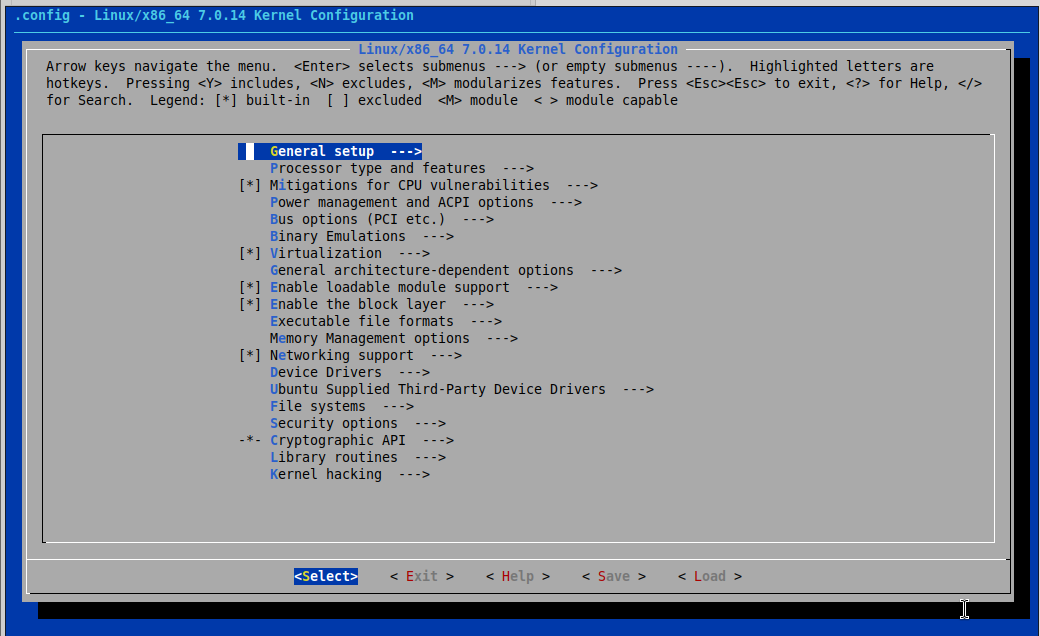
Searching for the configuration option
In this box type X86_NATIVE to search for this configuration option. Press enter to perform the search
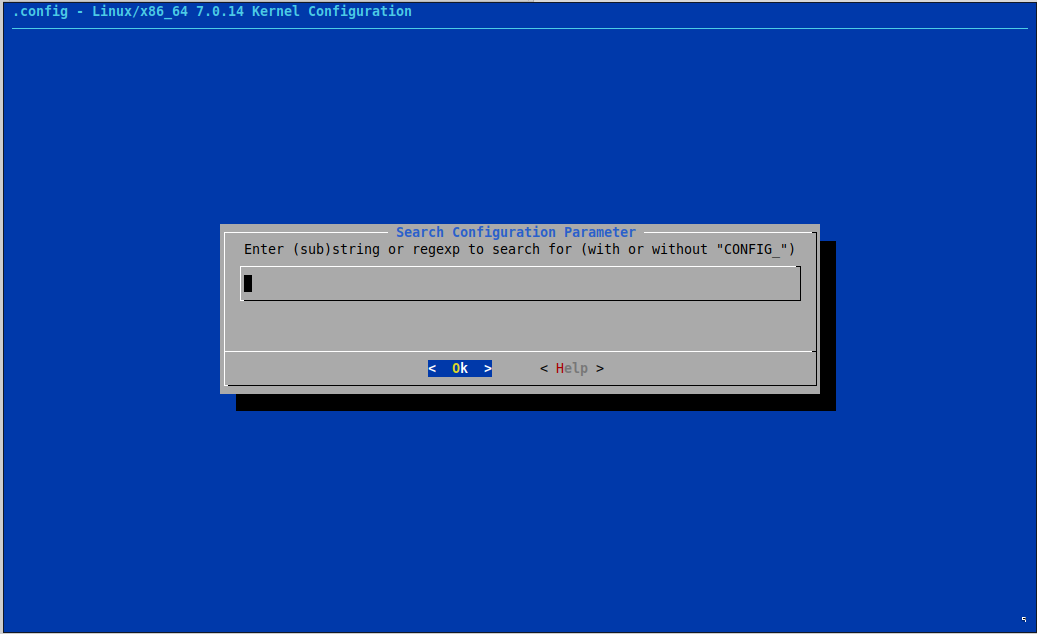
This is the search box
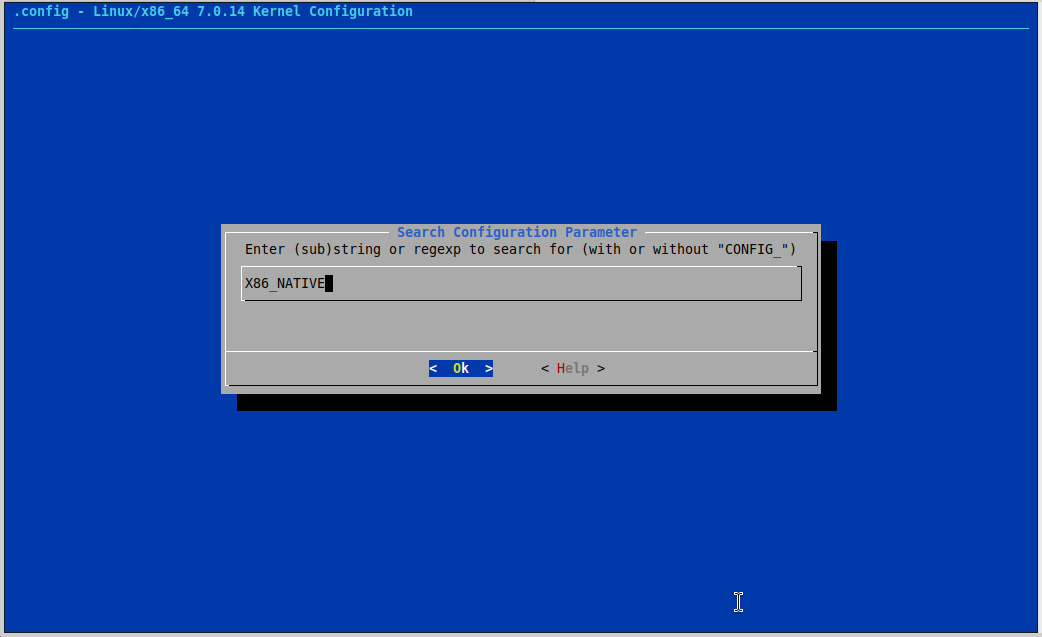
Enter this search term and press enter
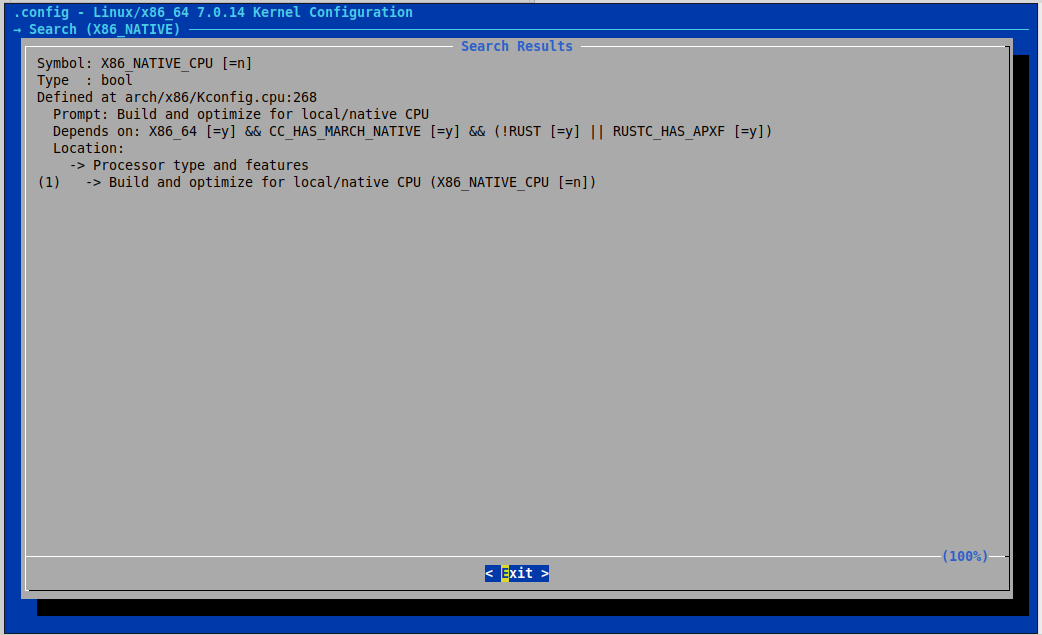
There is only 1 result, the kernel configuration option we want to change
Setting the configuration option
Now press 1 to jump to the configuration option. Then press the spacebar and an asterisk appears by the option
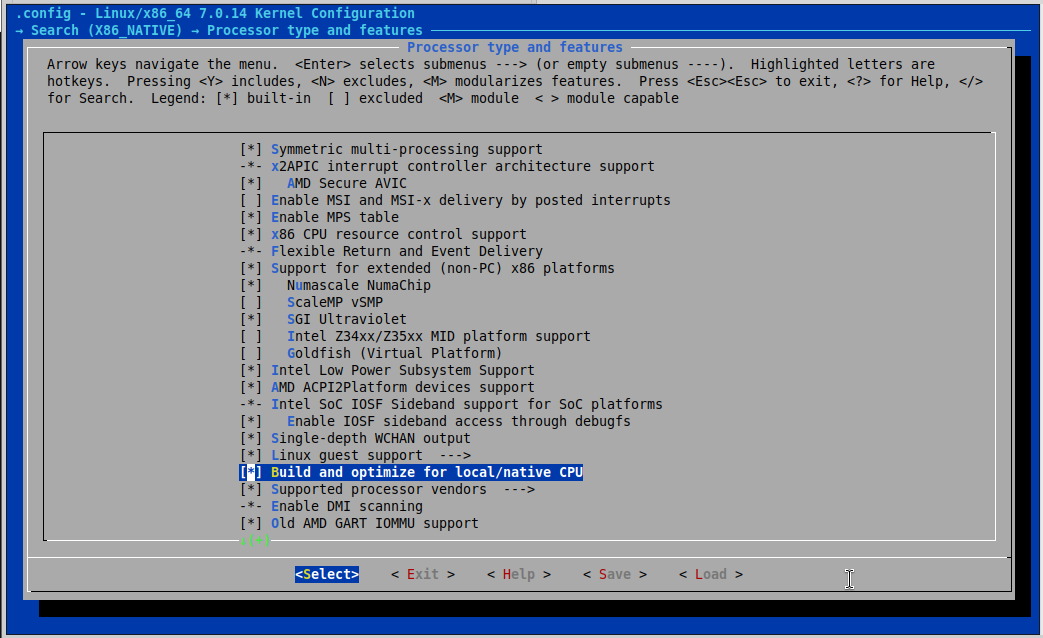
Pressing spacebar toggles the option. When the asterisk is shown, the option is enabled
If for some reason there are other kernel configuration options you'd like to change, you can do that now.
Save configuration
Use the left and right arrows to navigate to the Save option. Save the configuration in the default name of .config
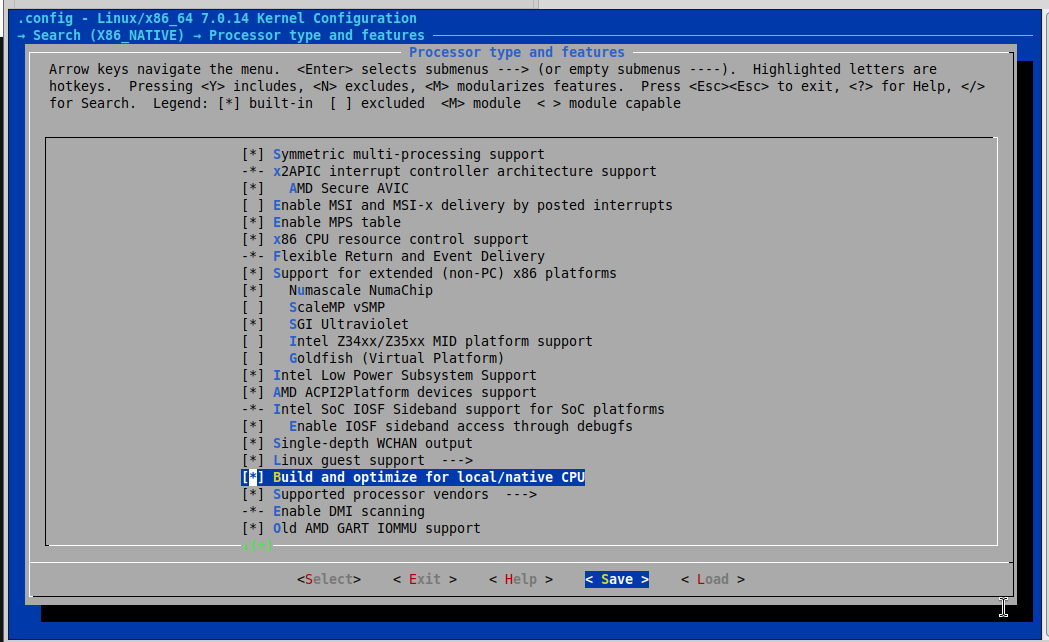
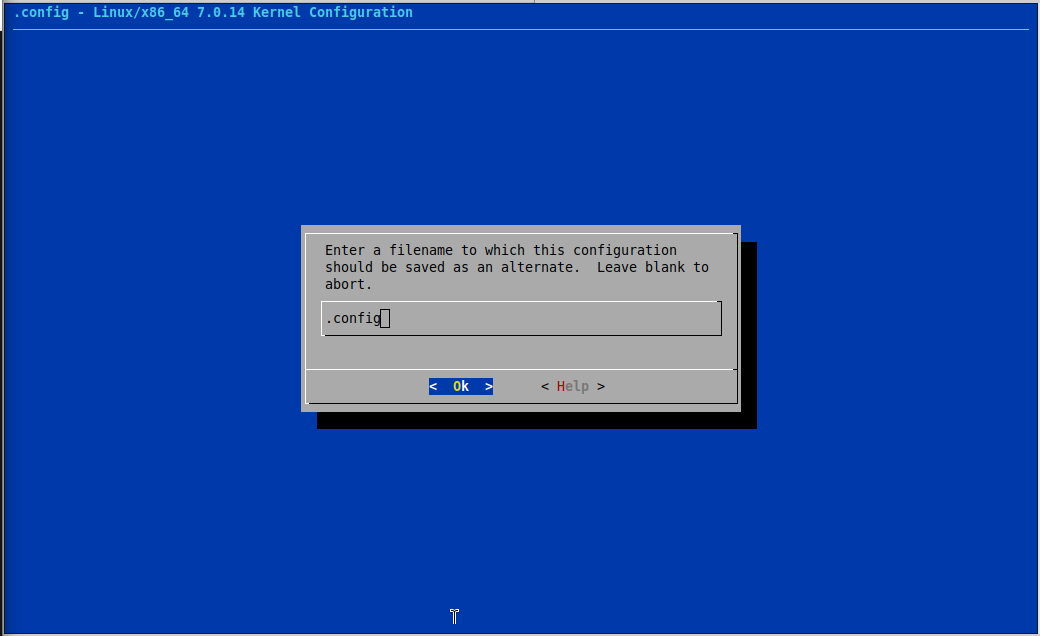
Navigate to the Exit option repeatedly and press enter to exit this configuration menu. When you save the configuration, you should expect to see this message. It can be ignored
ERROR: 7 config-check failures detected
ERROR: Config operation not applied to all architectures (skipped arm64 arm64 armhf ppc64el riscv64 s390x)
Compiling the kernel
This step can take a very long time; you may want to run this in screen if you are doing this remotely. To build the kernel run DEB_BUILD_OPTIONS="parallel=$(nproc)" ionice -c 3 nice -n 19 fakeroot debian/rules binary do_tools=false
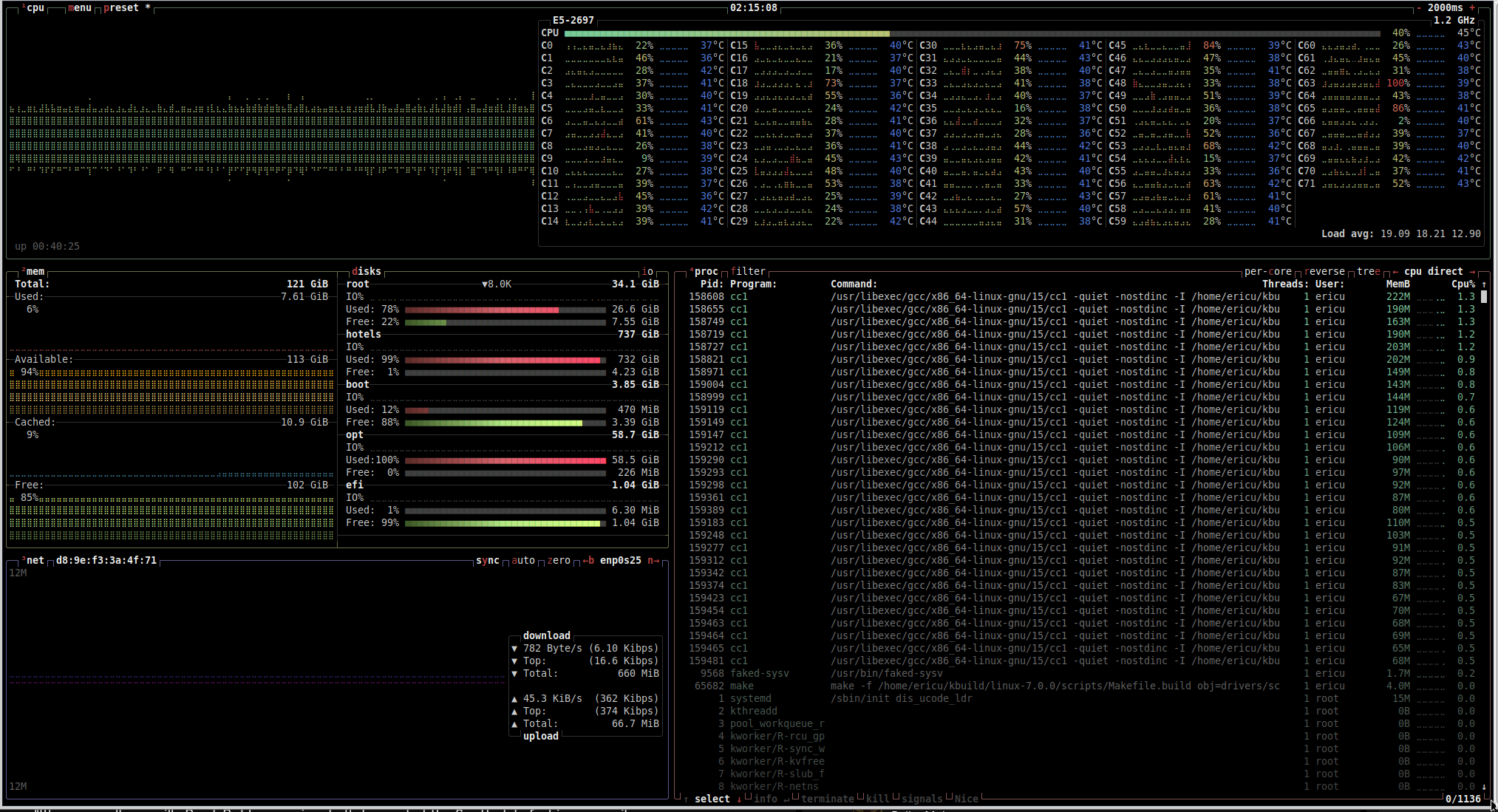
This is what the system utilization looks like while building the kernel
Now wait for this to complete
Installing the new kernel
Now in $HOME/kbuild you have a bunch of .deb files like this
$ ls -l *.deb
-rw-r--r-- 1 ericu ericu    948622 Nov  2 02:09 linux-buildinfo-7.0.0-990-generic_7.0.0-990.42_amd64.deb
-rw-r--r-- 1 ericu ericu    453990 Nov  2 02:10 linux-cloud-tools-common_7.0.0-990.42_all.deb
-rw-r--r-- 1 ericu ericu    453984 Nov  2 02:10 linux-doc_7.0.0-990.42_all.deb
-rw-r--r-- 1 ericu ericu   4513420 Nov  2 02:09 linux-headers-7.0.0-990-generic_7.0.0-990.42_amd64.deb
-rw-r--r-- 1 ericu ericu  15237060 Nov  2 02:10 linux-headers-7.0.0-990_7.0.0-990.42_all.deb
-rw-r--r-- 1 ericu ericu  17776832 Nov  2 02:09 linux-image-unsigned-7.0.0-990-generic_7.0.0-990.42_amd64.deb
-rw-r--r-- 1 ericu ericu  39288580 Nov  2 02:10 linux-lib-rust-7.0.0-990-generic_7.0.0-990.42_amd64.deb
-rw-r--r-- 1 ericu ericu   1994898 Nov  2 02:10 linux-libc-dev_7.0.0-990.42_amd64.deb
-rw-r--r-- 1 ericu ericu 168888512 Nov  2 02:09 linux-modules-7.0.0-990-generic_7.0.0-990.42_amd64.deb
-rw-r--r-- 1 ericu ericu    454298 Nov  2 02:10 linux-source-7.0.0_7.0.0-990.42_all.deb
-rw-r--r-- 1 ericu ericu    454088 Nov  2 02:10 linux-tools-common_7.0.0-990.42_all.deb
-rw-r--r-- 1 ericu ericu    453950 Nov  2 02:10 linux-tools-host_7.0.0-990.42_all.deb
Of these files, only a small number are actually needed to install the kernel. The ones you need to install are named
linux-headers-7.0.0-990-generic_7.0.0-990.42_amd64.deblinux-headers-7.0.0-990_7.0.0-990.42_all.deblinux-modules-7.0.0-990-generic_7.0.0-990.42_amd64.deblinux-image-unsigned-7.0.0-990-generic_7.0.0-990.42_amd64.deb
If the kernel version has changed to be newer than 7.0.0 when you are reading this, the file names are going to be different. You can install the kernel by using dpkg like this.
$ sudo dpkg -i ./linux-headers-7.0.0-990-generic_7.0.0-990.42_amd64.deb ./linux-headers-7.0.0-990_7.0.0-990.42_all.deb ./linux-modules-7.0.0-990-generic_7.0.0-990.42_amd64.deb ./linux-image-unsigned-7.0.0-990-generic_7.0.0-990.42_amd64.deb
As you will see this runs steps to build the ZFS and V4LW loopback modules at this time. This can take a while as a result. Now run sudo update-initramfs -u -k all then sudo update-grub so that the bootloader is updated to this kernel. The next time you reboot, the system will boot into the newly compiled kernel. This is easy to verify by running uname -a
$ uname -a
Linux 7.0.0-990-generic #42 SMP PREEMPT_DYNAMIC Mon Nov  2 03:02:12 UTC 2026 x86_64 GNU/Linux
Implications of this
These kernel .deb files are fine to install on this host. They aren't portable and shouldn't be treated as such.
The kernel compiled has a revision number of 990. This means Ubuntu updates to the kernel are going to get installed, but they are not going to be the default boot option. The correct way to handle this is when a newer kernel becomes availble, you use sudo apt-get remove linux-headers-7.0.0-990 linux-headers-7.0.0-990-generic linux-image-unsigned-7.0.0-990-generic linux-modules-7.0.0-990-generic to remove the custom kernel. You can then basically follow this guide again, just make sure when running apt source it indicates the latest kernel patch is downloaded.