Customizing Ubuntu 26.04
- Wednesday November 04 2026
- linux
I have been using Ubuntu as my desktop operating system for greater than ten years. This covers the steps I take to customize it for desktop usage. Almost everything here is presented as a terminal command for you to run. This was assembled mostly for my own notes, but I went ahead and took this opportunity to share this since others should find it useful as well.
Remove unused software
The default installation comes with several pieces of software I will never use. Run sudo apt-get remove gnome-text-editor thunderbird apport to remove them.
Update and install Xubuntu
The default installation comes with a desktop environment I do not like at all. You can install the XFCE desktop easily. Run these commands to upgrade the system and install the XFCE environment.
sudo apt-get update
sudo apt-get -y full-upgrade
sudo apt-get autoremove
sudo apt-get install xubuntu-desktop
When prompted, select lightdm as your display manager. Reboot and at the next login select a Xubuntu session. Once you are in that you can use the application launcher to configure startup tasks
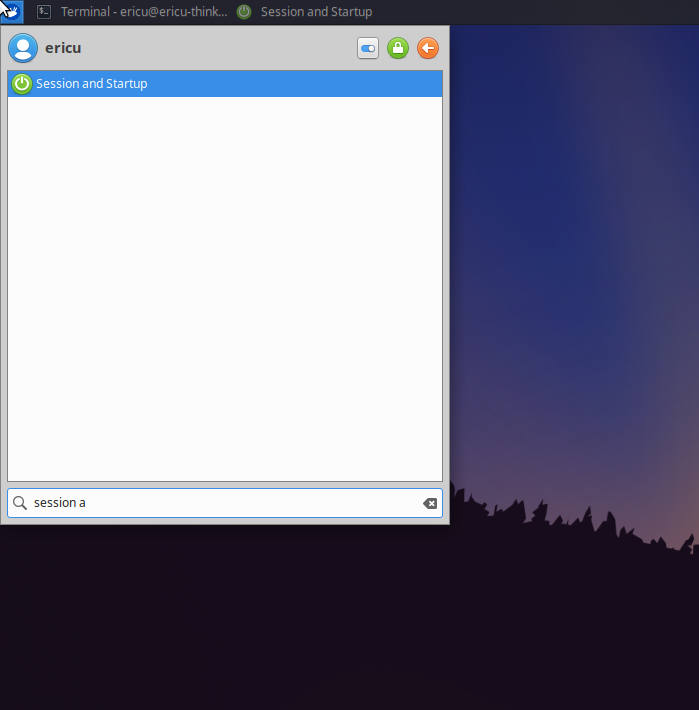
Launch this program to configure startup tasks
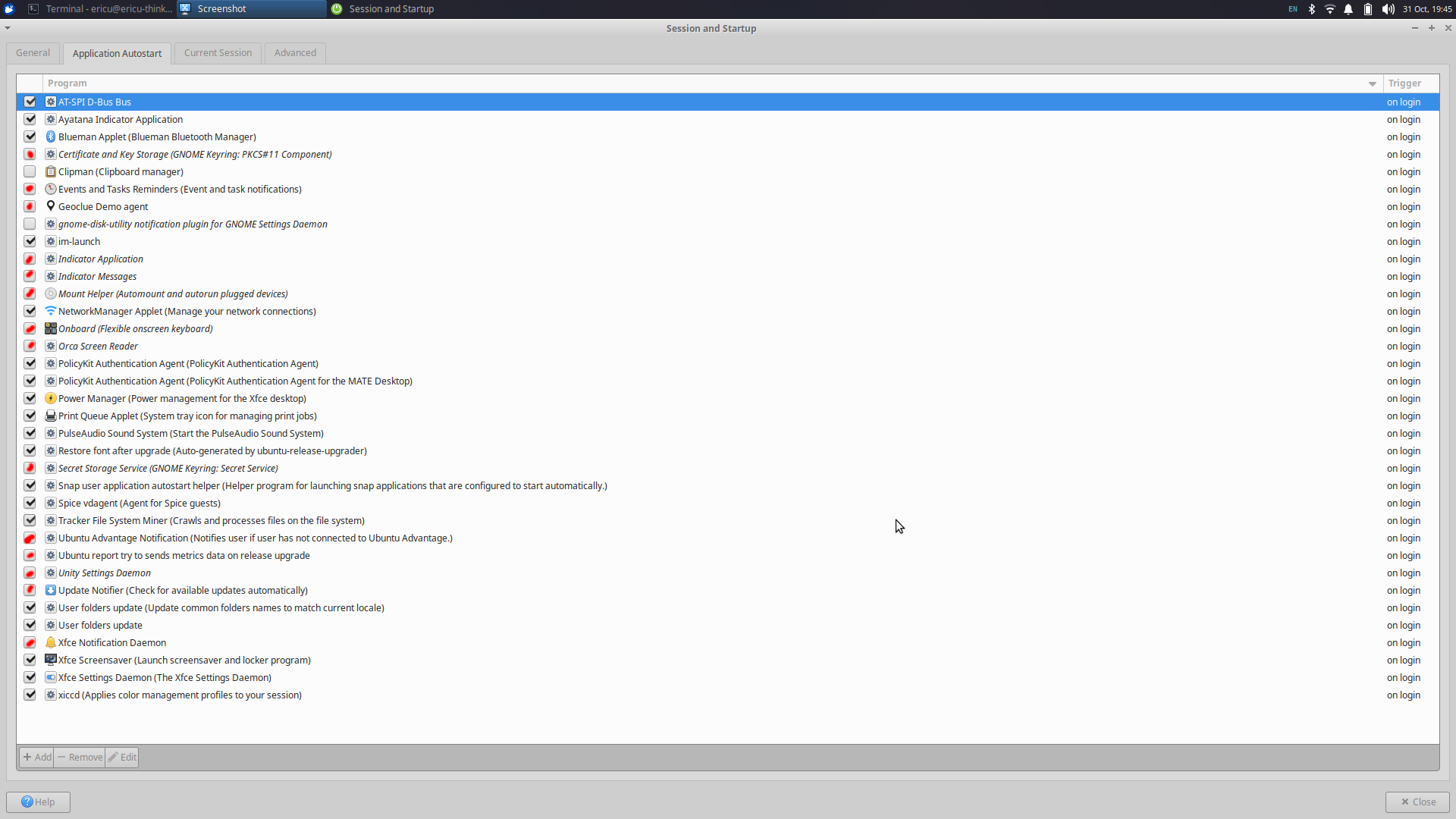
Uncheck the highlighted programs
Anything with a red mark above, make sure it is disabled unless for some reason you use that functionality.
Install SSH server for remote access
You can install an SSH server for remote access by running sudo apt-get install openssh-server.
Disable keystroke timing obscuration in the SSH client
By default, keystroke obscuration is enabled in newer versions. I am extremely bandwidth conscious and this feature is not really helpful in that regard. Run the command sudo nano /etc/ssh/ssh_config to edit the configuration. Under the section with Host * add ObscureKeystrokeTiming no indented like the rest. This weakens a security protection against someone snooping on your keystrokes via timing analysis. So if you have reason to believe someone might do that, do not do this.
Change mount options for the root filesystem to disable access time and enable discard
Ther are several easy things you can enable to improve filesystem performance. Edit the filesystem mount options by running sudo nano /etc/fstab. The mount options for the root filesystem are on the end of the first line
/dev/disk/by-id/dm-uuid-LVM-PJo6EUXzJmfZ0qnkNc7AqkDcbg5532Ae950U3AoyCs1gd1c6hcDK40GnvDlK7iQN / ext4 defaults,noatime,nodiratime,discard 0 1
/dev/disk/by-uuid/506dab68-bc3b-460a-9d35-6495eec6a2e5 /boot ext4 defaults,discard 0 1
/dev/disk/by-uuid/5EB1-9277 /boot/efi vfat defaults 0 1
/swap.img   none    swap    sw  0   0
In my case the device /dev/disk/by-id/dm-uuid-LVM-PJo6EUXzJmfZ0qnkNc7AqkDcbg5532Ae950U3AoyCs1gd1c6hcDK40GnvDlK7iQN is mounted at / which is the root filesystem. I have already added the options noatime,nodiratime,discard after defaults. Save that file then run sudo systemctl daemon-reload followed by sudo mount -o remount /. Run findmnt -no OPTIONS / to verify the mount options of the root filesystem. Then run lsblk --discard. The output of that looks something like
ericu@ericu-n150-nuc:~/Documents$ lsblk --discard
NAME                        DISC-ALN DISC-GRAN DISC-MAX DISC-ZERO
nvme0n1                            0      512B       2T         0
├─nvme0n1p1                        0      512B       2T         0
├─nvme0n1p2                        0      512B       2T         0
└─nvme0n1p3                        0      512B       2T         0
  └─dm_crypt-0                     0      512B       2T         0
    └─ubuntu--vg-ubuntu--lv        0      512B       2T         0
The column for DISC-GRAN and DISC-MAX are both non-zero for ubuntu--vg-ubuntu--lv so discard is enabled. In the event you are using purely mechanical disks, DISC-MAX is always zero since the discard functionality is not supported.
Change Kernel command line options
A small performance gain is possible by configuring the command line passed to the kernel at boot time. Run sudo nano /etc/default/grub to edit the boot time options. Update the line starting with GRUB_CMDLINE_LINUX_DEFAULT to look like this
GRUB_CMDLINE_LINUX_DEFAULT="noplymouth audit=0"
This disables any graphical effects during boot and disables the kernel auditing system. Run sudo update-grub to make this take effect.
Disable caching of negative DNS responses
Ubuntu runs systemd-resolved which by default caches negative responses. This means that if a host cannot be resolved, that result is cached. This behavior can be quite annoying. Run sudo nano /etc/systemd/resolved.conf. Find the line starting with #Cache= and change it to read Cache=no-negative. Save the file then run sudo systemctl restart systemd-resolved.
Disable persistence of log files
Ubuntu runs systemd-journald which saves all logs to disk. For a desktop I don't really see this as needed. Run sudo nano /etc/systemd/journald.conf to edit the configuration. Find the line starting with #Storage= and change it to read Storage=volatile. This causes the logs to only be stored in memory. Find the log starting with #ForwardToSyslog= and change it to read ForwardToSyslog=no. This stops all logs from being forwarded to syslog which could also write some logs to disk. Then run sudo systemctl restart systemd-journald.
Minimize swap behavior
I generally run enough memory that using swap is almost irrelevant. You can set the "swappiness" parameter to the minimum by running echo 'vm.swappiness=1' | sudo tee /etc/sysctl.d/99-swappiness.conf. This sets the value to 1, which still allows processes to have memory pages moved to swap when absoultely needed.
Change APT update behavior
Ubuntu's default behavior around updates is something I find annoying as it often leads to trying to update the package lists immediately after boot. My opinion is that there is no need to automatically fetch update information. The following commands disable all of that
sudo rm /etc/apt/apt.conf.d/99update-notifier
sudo rm /etc/apt/apt.conf.d/50unattended-upgrades
sudo systemctl disable apt-daily-upgrade.timer
sudo systemctl disable apt-daily.timer
sudo systemctl disable unattended-upgrades.service
Then run sudo nano /etc/apt/apt.conf.d/20auto-upgrades and make the contents of the file appear like this (the value should be zero for all configuration items)
20auto-upgrades 80 Bytes
APT::Periodic::Update-Package-Lists "0";
APT::Periodic::Unattended-Upgrade "0";
The effect of this is to completely disable automatic updates.
Disable login text
Each time you login to Ubuntu on a shell, it prints lots of text. To disable this, you need to edit these files
/etc/pam.d/login/etc/pam.d/remote/etc/pam.d/sshd
Then find and comment out these lines by adding a # character to the start of each one
session    optional   pam_motd.so motd=/run/motd.dynamic
session    optional   pam_motd.so noupdate
Optional stuff
Remove the firmware updater
If you don't care about getting firmware updates you can run sudo apt-get remove fwupd.
Remove the command not found functionality
By default Ubuntu attempts to show packages that could be installed for a specific program when you run it from a shell. You can disable this by running sudo apt-get remove command-not-found
Disable service for printing
If you don't do printing you can disable the services for that
sudo systemctl disable --now cups.service
sudo systemctl mask --now cups.service cups.socket cups.path cups-browsed.service
Disable zeroconf
If you don't use zeroconf, you can run
sudo systemctl disable avahi-daemon
sudo systemctl mask --now avahi-daemon.service avahi-daemon.socket
Disable the minimal firewall
If you don't intend to configure the firewall you can run
sudo systemctl disable ufw
sudo systemctl mask --now ufw.service
Disable WPA configuration
If you don't use wireless networking you do not need the WPA supplicant service.
sudo systemctl disable wpa_supplicant
sudo systemctl mask --now wpa_supplicant.service
Enable a serial terminal
If you have a serial port you want to use as a terminal to access this machine you can run sudo systemctl enable serial-getty@ttyS0. This is convenient if the machine is headless. Note that ttyS0 is the serial port device name, normally found at /dev/ttyS0. If you are using a USB based serial port adapter, it may be named /dev/ttyUSB0.
Pin systemd tasks to "E-Cores"
If you have a modern Intel CPU, you probaly have a system with "P-Cores" and "E-Cores". For example on a 13950HX you will see this
$ cat /sys/devices/cpu_core/cpus
0-15
$ cat /sys/devices/cpu_atom/cpus
16-31
The number range in /sys/devices/cpu_atom/cpus is the E-cores. You can confine systemD processes to these, freeing up the performance cores for interactive tasks. You can run "sudo systemctl edit --system systemd-resolved.service" to edit the override file for systemd-resolved. In the text editor, set something like this
### Editing /etc/systemd/system/systemd-resolved.service.d/override.conf
### Anything between here and the comment below will become the contents of the drop-in file

[Service]
CPUAffinity=16-31
Save and close the file. This process can be automated for the common systemd services with this script